


In Part One, we built your 00 Social Kit: a color palette screenshot, brand patterns, and stickers and badges, all living in a single folder on your phone. You snap them into Instagram in under thirty seconds and everything looks unmistakably yours.
The Brand and Snap: Build your portable design system

Whether you’re someone who obsesses over every color choice in your reels, or you’re just trying to keep your feed moving, there’s a gap. And that gap is costing you.

Here’s what I didn’t tell you in Part One: the same kit works everywhere else in your business too.
Your newsletter. Your client docs. Your Substack posts. Every time someone moves through one of those spaces and it doesn’t look like the brand they just saw on Instagram, there’s a tiny moment of disconnect. They probably can’t name it. But it registers.
The fix is the same one we used in Part One: a few small visual choices, applied consistently, everywhere. You already have most of the assets. We’re going to add one more and then use it everywhere.
First: Add a Custom Breaker to Your Kit
…like the neon checkered breaker you see throughout this post!
In Part One, we talked about stickers, badges, and branded artifacts → the custom graphics with transparent backgrounds that you layer into your content as a personal stamp.
I want to add one more thing to that category: a custom section breaker.
You know the horizontal rule. That thin grey line that drops between sections in a doc, an email, a Substack post. It’s functional. It’s also completely generic. It does nothing for your brand. Let me illustrate this.
BORINGGGGGG ⬇️
FUN!!! ⬇️ (mine is the checkered one, followed by 3 I’ve made for clients)


A custom breaker swaps that line for something pulled from your visual world. A repeating pattern. A checkered element. A simple graphic that uses your brand colors and echoes the patterns already in your kit. It’s thin enough to not interrupt the reading flow but distinctive enough that someone who’s seen your Instagram immediately recognizes it.
How to build yours in Canva:
Open a new Canva design. Set the dimensions to 728px wide × 40px tall. (This is a wide, thin strip — the proportions that work across email, docs, and web posts.)
Look at the patterns already in your 00 Social Kit. What’s the repeating element? A checkerboard? A dot grid? A stripe? An Image? Pull that same motif into this canvas. You’re not designing something new. You’re shrinking an existing pattern element down into a horizontal strip.
Apply your brand colors. Keep it to one or two. The breaker should feel like a quiet nod to your brand, not a shout.
Export as PNG with transparent background.
Add it to your 00 Social Kit folder. Label it something obvious — “breaker” or “divider” — so you can find it fast.
That’s it. One graphic. Now let’s use it.
Platform One: Notion
Notion doesn’t have a brand kit feature, but it has just enough flexibility to feel unmistakably yours — especially on any page you’re sharing with clients.
Step 1: Set your cover image. Every Notion page has a cover. In Canva, create a wide-format image (1500 × 600px) in your primary brand color with your logo or publication name in your brand font. Export it. This becomes the cover on every client-facing page — welcome docs, onboarding hubs, resource libraries. One template, duplicated every time.
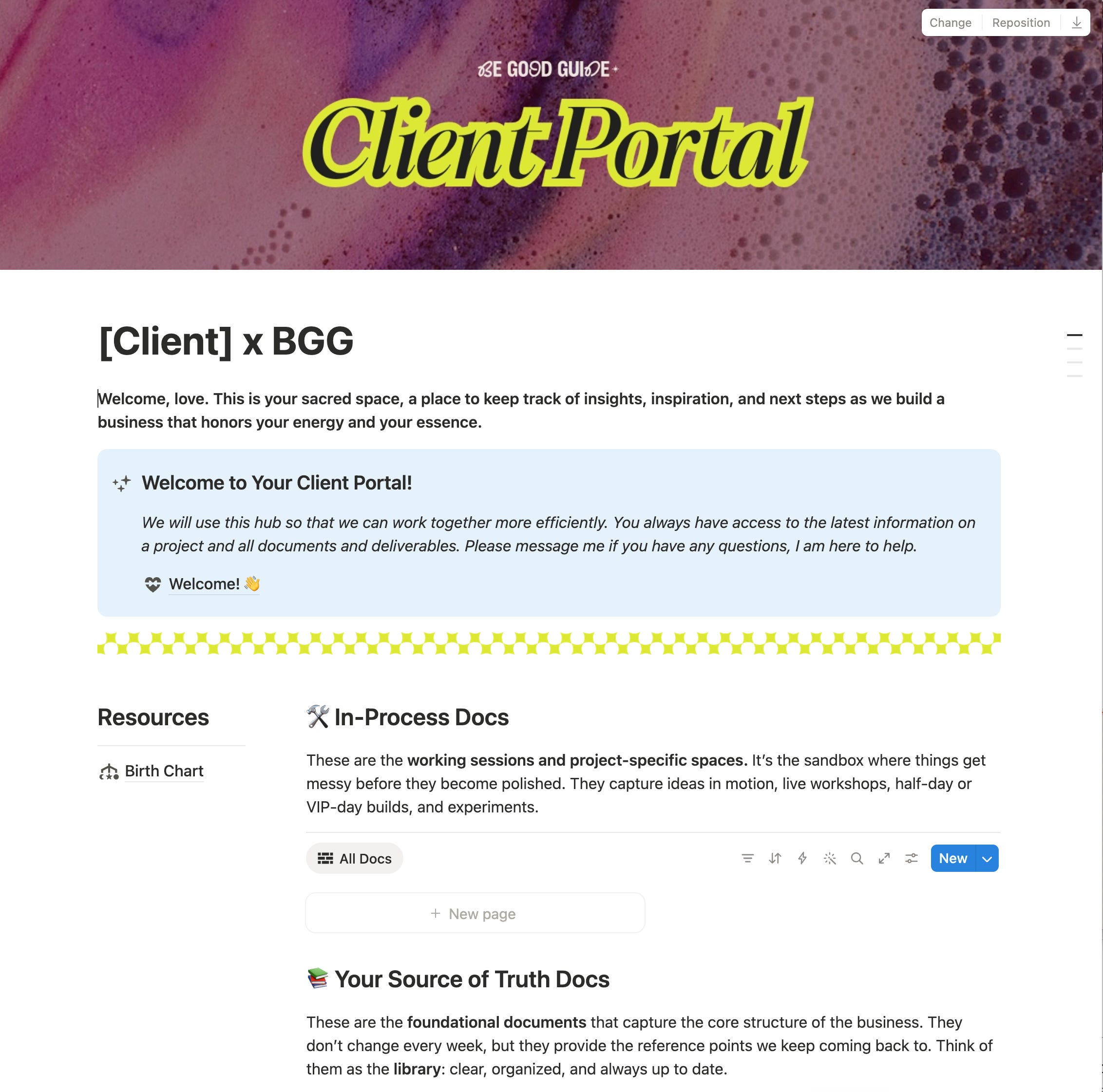
Step 2: Use callout blocks in your brand color AND to create meaning. Notion’s callout blocks default to grey. Click into the color selector and switch to the closest match to your secondary brand color. Use these for anything you want a client to see first — next steps, key reminders, important context. Choose different colors based on meaning. It becomes a visual language they learn to read without thinking about it. If you’re feeling spicy, add an emoji!


Step 3: Swap the horizontal rule for your breaker. Instead of using Notion’s default divider line between sections, add an image block and upload your custom breaker PNG. Set it to full width. Ten seconds. It makes a shared Notion page look like it came from the same world as your Instagram and your emails.
Step 4: Save a master template. Build one Notion page with all of this already in place → branded cover, callout color, breaker dividers and duplicate it every time. You do the setup once. Every page after that takes thirty seconds.
Platform Two: Flodesk
Flodesk was designed to be beautiful without much effort. The work here is mostly about locking in your choices once so you’re not rebuilding from scratch every send.
Step 1: Set your brand colors and fonts. Go to Brand settings and input your exact hex codes. This controls button colors, heading colors, and link colors across every email you send. While you’re there, set your fonts. Flodesk supports Google Fonts — match your choices as closely as possible to what you’re using everywhere else. Do this once. It applies everywhere. For body copy, choose a Google Font that’s similar and then for the layouts that support custom font, make sure yours is loaded into your brand kit.
Step 2: Build your branded modules. This is where Flodesk’s email builder earns its keep. Inside any email, you can build individual content blocks → a header with your background image, a section divider using your custom breaker PNG, a sign-off block with your logo and signature. Build each of these once, styled exactly to your brand. Choose different backgrounds to use in the modules. Some will have to be a solid color, but some allow background images that you can use textures and images. Play with pulling different brand colors into textures. Here I have a bulletin board texture in two different colors.


Step 3: Save them as Favorites. Here’s the move. Once a module looks right, hover over it and save it to your Favorites. This is Flodesk’s version of your 00 Social Kit folder — a library of pre-built, pre-branded blocks that live inside the platform and snap into any email you’re building.
Your Favorites library should include at minimum:
A branded header block with your background image or pattern
Your custom breaker as a standalone divider block
A few of your favorite layouts loaded in with your fonts, colors and background images
Step 4: Build every email from Favorites. From here, you’re not designing emails. You’re assembling them. Drop in your header Favorite, write your content, drop in your breaker Favorite between sections, close with your sign-off Favorite. Every email looks like it came from the same place because it did → the same branded modules, every time.
Here is what a full brand extension kit looks like for Flodesk (I made this for a client of mine and if you are interested in outsourcing this to me, leave a comment!)
This is the same logic as the 00 Social Kit folder, just native to Flodesk. Build the pieces once. Snap them in forever.
Platform Three: Substack
Substack gives you fewer design controls than the other two, which is fine. The visual consistency here comes from a handful of small choices, made once, applied every time.
Step 1: Set your publication color and cover. In Substack’s appearance settings, add your primary brand hex as the publication color → this controls buttons and links across your publication. For the cover, create a simple branded image in Canva: your publication name in your brand font on a solid brand color background. One image. Set it and leave it.
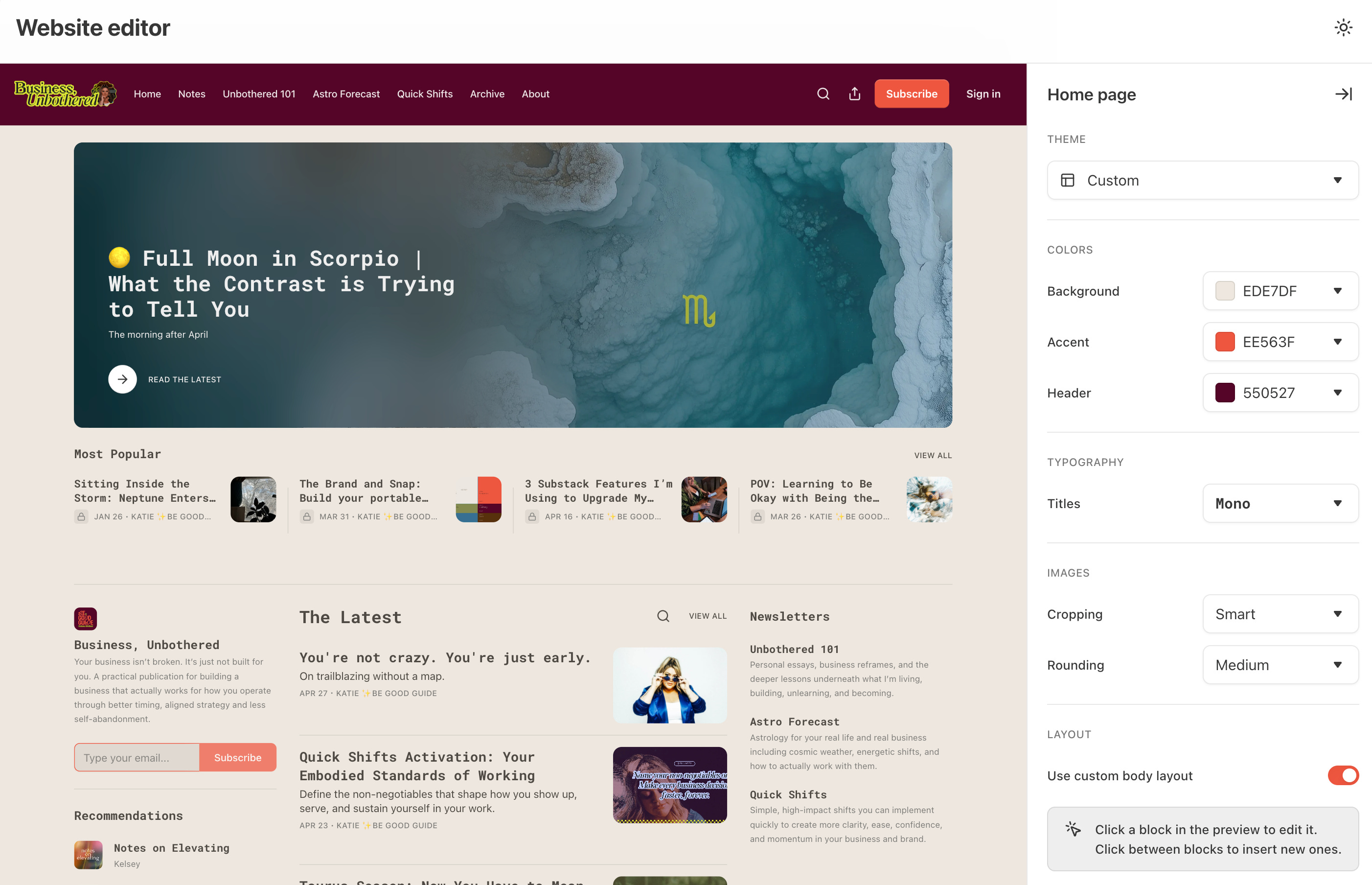
Step 2: Swap the section break for your breaker. When you want to break between sections in a post, insert your custom breaker image inline. In the Substack editor, add a new template, click the image insert button, upload your PNG, and it drops in at full width. Use it in the same position across all of your posts.
Step 3: Create a consistent post structure. This is less about visuals and more about format. Decide on a structure for each series (how your intro opens, where the breaker falls, how you close) and stick to it. Readers start to recognize the shape of a post before they’ve read a word. That’s brand consistency working at the level of writing, not just design.
What You’ve Just Built
Your 00 Social Kit now has a custom breaker in it. That one graphic is sitting in your Notion docs, your Flodesk emails, and your Substack posts → replacing the generic grey line with something pulled directly from your visual world.
Someone who finds you on Instagram, opens your welcome email, clicks into a shared Notion doc, and reads your latest Substack is moving through one coherent world. Not four different businesses that happen to share a name.
That’s the Brand and Snap. Built once. Extended everywhere.
Start with one platform…whichever one you’re in the most right now. Get the breaker in there. Then the next.
Small moves. Same brand. Every time.


I need to do this! I’m stuck on my divider! Seems so simple but I’m like 🫨 😂😂😂